

ComfyUI LTX-2 interface for audio-video generation
COMFYUI LTX-2: REVOLUTIONIZING AUDIO AND VIDEO CREATION
ComfyUI LTX-2: Revolutionizing Audio and Video Creation – Discover ComfyUI LTX-2, a powerful audio-video model that generates synchronized content. Learn about its features, pros, cons, and more. In short, this guide explains ComfyUI LTX-2 in plain language.
ComfyUI LTX-2: Direct answer
ComfyUI LTX-2 is an advanced model that generates synchronized audio and video in one go. It is designed to create cohesive experiences for users, making it easier to produce high-quality content quickly.
ComfyUI LTX-2: Key Takeaways
- ComfyUI LTX-2 generates synchronized audio and video in one pass.
- It is based on a 19B parameter DiT architecture.
- The model is open-source and accessible for various projects.
- LTX-2 can work on systems with less than 32GB VRAM, but may be slower.
- It creates cohesive experiences for users, enhancing content quality.
What’s New Today
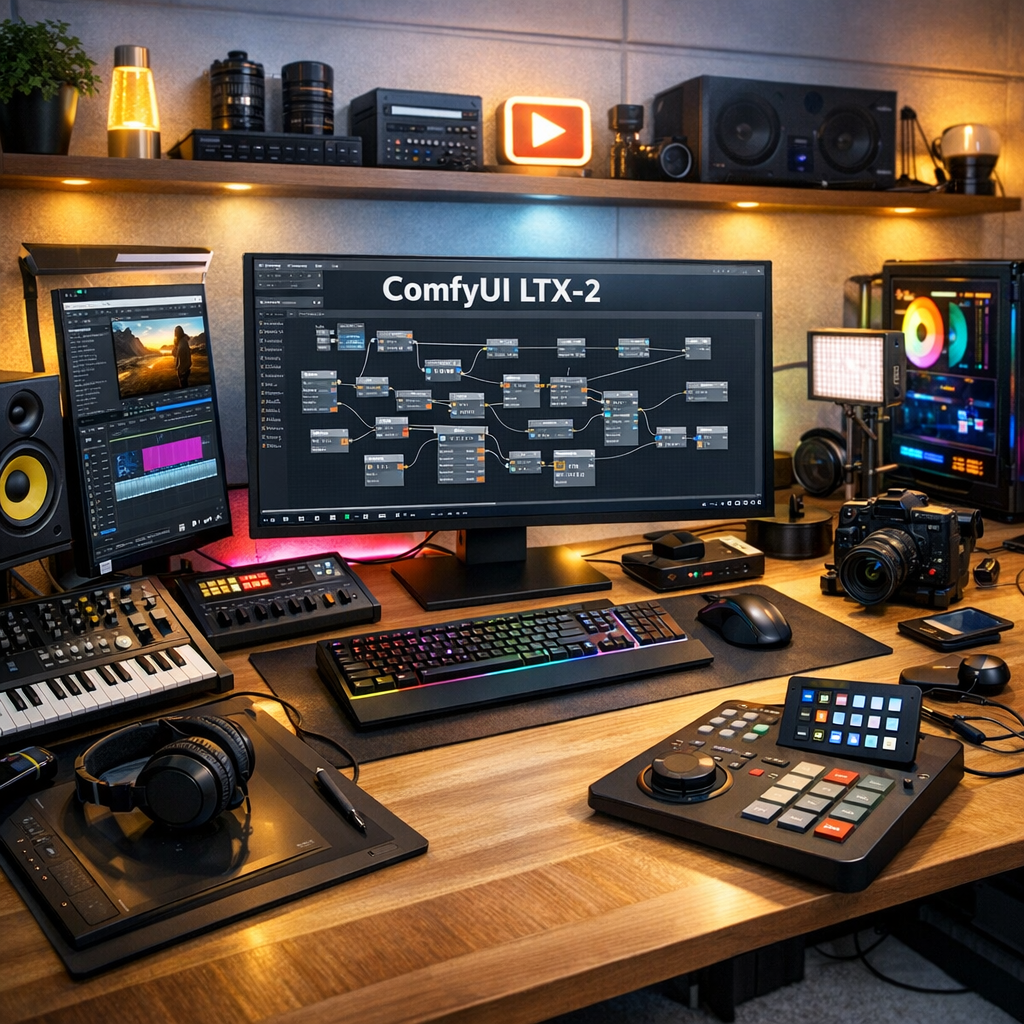
ComfyUI LTX-2 is making waves in the world of audio-video generation. Released recently, it offers a powerful solution for creators looking to produce synchronized content quickly and efficiently. This model is designed to enhance the way we think about audio and video integration, providing a streamlined process that can significantly reduce production time and effort.
Overview
Watch on YouTube
ComfyUI LTX-2 is a 19B parameter model developed by Lightricks. It is based on a DiT architecture, which stands for Denoising Diffusion Transformer. This innovative technology allows it to generate both audio and video in a single pass, creating a seamless experience for users. The model is open-source, making it accessible for developers and creators alike [1]. This accessibility encourages a vibrant community of users who can contribute to its ongoing development and improvement.
Key Features
- Synchronized Generation: LTX-2 produces audio and video together, ensuring they match perfectly. This feature is particularly beneficial for content creators who require precise synchronization for their projects.
- Open-Source: Being open-source allows for community contributions and improvements, fostering an environment of collaboration and innovation among developers [2].
- Weight Streaming: This feature enables the model to run on systems with less than 32GB VRAM, although it may be slower. This flexibility makes it accessible to a wider range of users, including those with less powerful hardware [3].
- High-Quality Output: The model is designed to create high-quality audio and video content, making it ideal for various applications, from professional filmmaking to casual content creation.
Pros and Cons
Pros
- Fast and efficient audio-video generation, allowing creators to produce content more quickly than traditional methods.
- Open-source, allowing for customization and adaptation to specific user needs.
- Can run on lower-end hardware with some limitations, making it accessible to a broader audience.
Cons
- Performance may decrease on systems with less than 32GB VRAM, which could limit its usability for some users.
- Requires some technical knowledge to set up and use effectively, which may pose a barrier for less experienced users.
Key Insights
ComfyUI LTX-2 is a significant advancement in audio-video technology. It allows creators to focus on their content rather than the technical details of synchronization. This model is particularly useful for filmmakers, game developers, and content creators who need to produce high-quality media quickly. The ability to generate synchronized audio and video in one go can lead to more creative freedom and less time spent on post-production tasks [4].
Patterns
The trend towards integrated audio and video generation is growing. Models like LTX-2 are leading the way, showing that it is possible to create cohesive content without the need for separate processes. This pattern is likely to continue as technology advances, with more tools emerging that prioritize efficiency and integration in content creation [5].
Controversies
As with any new technology, there are concerns about the implications of AI-generated content. Some worry about the potential for misuse or the impact on traditional media jobs. However, many believe that tools like LTX-2 can enhance creativity rather than replace it. The debate continues as the industry grapples with the balance between innovation and ethical considerations in content creation [6].
Blind Spots
While LTX-2 is powerful, it may not be suitable for all types of projects. For example, highly specialized audio or video needs may require additional tools or software. Users should evaluate their specific requirements before fully relying on this model. Additionally, the learning curve associated with using such advanced technology may deter some potential users [7].
Opportunities
The open-source nature of LTX-2 presents numerous opportunities for developers. They can build upon the existing framework to create new applications or improve functionality. This collaborative approach can lead to innovative solutions in audio-video generation, potentially resulting in new features that enhance user experience and broaden the model’s applicability [8].
Advanced Breakdown
ComfyUI LTX-2’s architecture is designed for efficiency. By using a DiT-based approach, it minimizes the time needed for audio and video synchronization. This efficiency is crucial for creators who need to produce content quickly without sacrificing quality. The model’s ability to handle complex tasks in a streamlined manner sets it apart from traditional methods, making it a valuable tool in the modern content creation landscape [9].
Comparison
When compared to other audio-video models, LTX-2 stands out for its ability to generate content in a single pass. Many traditional models require separate processes for audio and video, which can be time-consuming. LTX-2’s integrated approach saves time and enhances productivity, making it a preferred choice for many creators looking to optimize their workflow [10].
What People Are Asking
Many users are curious about the capabilities of ComfyUI LTX-2. Questions often revolve around its performance on different hardware and its potential applications in various fields. Users are eager to explore how this model can fit into their creative workflows, with many seeking advice on best practices for implementation and optimization [11].
Popular Searches and Questions
Common searches include queries about the best hardware for running LTX-2, tips for maximizing its performance, and examples of projects that have successfully used the model. These questions reflect a growing interest in audio-video generation technology and the desire for practical guidance on leveraging this powerful tool effectively [12].
References
Listen
Share
Related reading
- Grok Video: What You Need to Know
- Exploring Cursor AI: A New Era in Coding
- Sora AI Newest Version Updates Reviews 2026
- Ltx-2 Hugginface Updates 2026: What to Expect
- ChatGPT OpenAI 2026 Updates: What’s New and What to Expect
About the Author